jueves, 28 de junio de 2018

Install/Recover Grub2 from Linux Live CD/USB after installation of other Operating Systems (Windows 7, 8 , 10) or Grub doesn't load


Recommended Live CD's (Ubuntu/Mint)

It is really easy to install grub.
You just have to follow simple steps after that you will see grub2 in your system again.


First of all Boot your Linux Live CD/USB then open Terminal  and enter following commands:

This command for root permissions:

miércoles, 27 de junio de 2018

20 Best Ubuntu Applications in 2018

The popularity and user base of Linux is increasing rapidly hence many popular app developers are extending their support for Linux distributions. One big positive about Linux is it doesn’t have any restrictions like Windows or Mac OS. Users can customize the operating system and make the apps work according to their preferences. Because of this there are many identical apps in similar categories available for Linux systems. So today we are going to share the list of 20 best Ubuntu apps that you should download and use in 2018.

1. Google Chrome

Almost all the Linux distributions come with Mozilla Firefox browser pre-installed on them. Firefox browser works really well on Linux but if you have an Android smartphone and a regular chrome user on Windows then you should use Google Chrome on Linux too. Because you can access all the bookmarks and history of Google Chrome any time on any device. You can also sign in to your Google account and sync all the data from other devices you use.
Google Chrome
Google Chrome also supports additional security features and extensions for enhanced browsing experience.

2. Copay

Bitcoin, which is a cryptocurrency, is getting very popular and its value against the US Dollar is increasing rapidly. Copay is a Bitcoin wallet where you can manage, send and receive Bitcoin securely. It is a multiple signature wallet where you can setup a shared wallet account with private key for all account holders.
Copay
If you use Bitcoin then this Copay client can be very useful for you. It is also an open source wallet, so if you are a app developer or enterprise user you can take full control of Copay wallet by making tweaks as per your preferences.

3. Skype

Skype is very popular video calling application software on Windows operating system. If you already moved from Windows to Ubuntu or planning to do so you might not want to switch back to Windows just to use applications like Skype whenever in need. Skype can be very useful for you no matter what kind of user you are.
skype

4. VLC Media Player

VLC is the coolest media player available on internet for various platforms including Linux. I am calling it a coolest because it is an open source cross-platform media player as well as it plays all the media files without any issue no matter which media file format you have. It also offers online media streaming which many media players don’t support.
VLC Media Player

5. Ubuntu Cleaner

Ubuntu cleaner is useful tool to free up space on Ubuntu. You can clean browser caches and remove packages that are not useful to you anymore. This app can be very useful for many Ubuntu users with limited storage.

6. Corebird

Corebird is very popular and #1 ranked Linux twitter client. If you are looking for something other than a traditional browser to use twitter on Linux then Corebird twitter client is must have for you. Corebird offers all the features available in Twitter app for Android or iOS phones. It supports multiple accounts, notifications any many other features.
Corebird

7. Gnome Multi-Writer

Gnome Multi-Writer is a USB tool can be used to write image files. It has a simple user interface which guides you through process of writing image files to external storage devices such as an SD card or USB flash drive.
Gnome Multi-Writer

8. Evince

Evince is a simple document viewer but can be useful for any type of users. If you love reading eBooks then Evince can be a must have app for you on Linux. It supports almost all the document formats used nowadays.

9. Clementine

Clementine is a very popular cross-platform music player. This music player comes with a very simple user interface and it is very easy to use. If you are looking for dedicated music player then Clementine could be suitable for you. It supports all the music file formats with support for built in lyrics, artist and music information.
Clementine

10. Dropbox

There are many cloud storage apps available on internet but still Dropbox is best in the business. Dropbox keeps on introducing new features that no competitor can match. Many cloud storage apps don’t have a dedicated client for Linux but Dropbox has a very sleek interface which is very easy to use.
Dropbox

11. Cumulus

Cumulus is a desktop weather client for Linux powered by Yahoo Weather. Cumulus is developed in Python and has a user friendly interface so that you can set it up easily. Some of the features of this desktop client include 5 day weather forecast and real time weather at your preferred location.

12. Gnome Tweak Tool

If you are new to Linux you might find it difficult to configure system initially. Gnome Tweak Tool will ease this process little bit for you. Using this tool you can customize themes, icons and many other system configurations.

13. Krita

Krita is a digital painting and image editing application software which is developed under KDE Project. Krita very similar to Adobe Photoshop on Windows platform because of many features and tools in Krita are identical to those in Adobe Photoshop.
Krita

14. Wine HQ

When it comes to running Windows applications on Linux system Wine which is known as Wine Is Not An Emulator is the #1 recommended software. Many games and applications of Windows are still not available for Linux platform hence using Wine you can use them on Linux system without any trouble.
Wine HQ

15. Open Shot

Open Shot is the cross-platform video editing software which is available for Windows, Linux and Mac OS. Open Shot is developed in Python and offers many features like drag and drop, video trimming, 3D titles, transition effects. It also supports a majority of audio and video formats.
Open Shot

16. Steam

Linux users always struggled to play games on their system but thanks to Steam for releasing its client for Linux system now users can enjoy almost all the games available for the Windows platform. If you have switched to Linux and miss playing games on Windows don’t resist yourself anymore just download Steam client for your Linux system.
Steam

17. Visual Studio Code

Visual Studio Code is an open source code editor where you can develop, debug web cloud applications. It is integrated with Git out of the box.  You will find it very similar to Sublime Text and Atom text editor.
Visual Studio Code

18. Kazam

Kazam is a very cool screen recording tool available for Linux. If you are beginner then Kazam is must have tool for you. It is a simple tool with user friendly interface so that you can get your task completed easily. Kazam supports multiple video and audio output formats.
Kazam

19. Nylas Mail

Nylas Mail is an email client for Linux developed using open web technologies. It has very good user interface which you will find very easy to use. It offers various features like unified inbox for all the major email providers, contacts management and calendar integration.
Nylas Mail

20. GitBook Editor

GitBook Editor is cross-platform editor which is available for Linux, Windows and Mac OS. If you are a GitBook user then there is no other better editor for you than GitBook Editor. It offers various features such as drag and drop, expressive mark-up and version control which uses Git technology.
GitBook Editor

miércoles, 8 de noviembre de 2017

Sigue el gran apoyo a The Linux Foundation.

the linux foundation
La semana que viene se cumplirá un año desde que la noticia más inverosímil se hiciese realidad. Entonces Microsoft se unió a The Linux Foundation como miembro de platino, a la cabeza de la lista en las contribuciones económicas y en compañía de otros notorios gigantes como Cisco, Fujitsu, HPE, Huawei, IBM, Intel o Samsung. Nada de extrañar, viendo la importancia que está adquiriendo el sistema Open Source en las soluciones de los de Redmond, ya sea en sus servicios profesionales de Microsoft Azure o en el propio Windows.
Sin embargo, el de Microsoft es solo un ejemplo célebre del efecto que genera Linux y el software de código abierto en el mercado corporativo. En las últimas fechas The Linux Foundation ha recibido numerosas adhesiones en el grupo más abundante, el de los miembros de plata, en el que se pueden encontrar a empresas tan dispares como Adobe, AMD, NVIDIA, BBVA, BOSCH, Canon, Ford, GitHub, Google, Lenovo, Netflix, Twitter, Valve, Canonical, Deepin o Red Hat, entre muchas otras. Más de quinientas a día de hoy.
El último conjunto de adhesiones se anunció la semana pasada e incluía 20 nuevas organizaciones, a destacar la operadora de telecomunicaciones China Unicom, la bolsa de valores Giblaltar Stock Exchange o la conocida Wikimedia Foundation, la plataforma que mantiene los contenidos multimedia de Wikipedia. De nuevo, organizaciones dispares donde las haya. Una tónica que se repite y que de remontarnos al anterior anuncio se confirma: fue en agosto y contaba 18 incorporaciones, incluyendo a Bloomberg, VodafoneGitLab.
Los nuevos miembros de plata de The Linux Foundation representan organizaciones líderes en servicios de consultoría, telecomunicaciones, intercambio de conocimiento, finanzas y más“, comenta Jim Zemlin, director ejecutivo de The Linux Foundation. “Estamos entusiasmados de que se hayan comprometido a apoyar el código abierto y damos la bienvenida a las contribuciones que su experiencia aportará a la comunidad“.
Actualmente The Linux Foundation cuenta con 13 miembros de platino y 14 miembros de oro que aportan 500.000 y 100.000 dólares al año respectivamente. Miembros de plata aglutina ya 520, con un dispendio anual de entre 20.000 y 5.000 dólares anuales según el número de empleados de la organización.
En otro orden de cosas, The Linux Foundation publicó recientemente su informe 2017 sobre el desarrollo del kernel Linux.

sábado, 15 de julio de 2017

Llegó la versión 3.4 de Calibre con grandes novedades


La famosa aplicación Calibre, que está disponible para varios sistemas operativos, entre ellos GNU/Linux, es una de las más conocidas y con más funcionalidades de entre las que existen para la gestión de ebooks. No solo te permite tener acceso a tus ebooks, estén en el formato que estén. También permite gestionarlos y convertirlos entre formatos, entre otras muchas opciones. Soporta numerosos formatos, entre ellos los más conocidos PDF y EPUB. Lo cierto es que yo lo uso mucho para transformar entre formatos, ya sea de uno en uno o por lotes de libros.
Se hecha en falta algo de mejora en el rendimiento, ciertamente, aunque bueno, ahora con la llegada de esta nueva versión Calibre 3.4 que tiene algunas mejoras, tendré que evaluar si ha cambiado en algo al respecto. Como sabes, entre las funcionalidades también estaba la de poder importar y exportar libros desde los lectores de libros electrónicos más importantes del mercado. Con la llegada de la nueva versión estable de esta app de código abierto, se pretende mejorar algunas de las cuestiones que había por pulir en versiones previas.

Desde la versión 3.3 de Calibre se ha mejorado la interfaz como han dicho los desarrolladores. Además se han corregido algunos bugs que se producían de forma frecuente. Por si eso fuese poco, los desarrolladores se han preocupado también de otros detalles y funcionalidades, como la de añadir un nuevo método de exportar libros a tu equipo. En el editor hay ahora una nueva función para seleccionar ficheros a exportar y permite de una forma sencilla navegar y seleccionar todo lo que queremos agregar.
Otras mejoras también pasan por la inclusión de mejoras respecto a los idiomas, etc. Los bugs corregidos y las mejoras en el código harán que el programa funcione algo mejor con esta nuevo lanzamiento. Algunos usuarios reportaron algunos problemas desde el último lanzamiento y eso es en lo que se ha trabajado para que no estuviesen presentes en la actual versión…

sábado, 8 de julio de 2017

How to correctly format the USB stick in Linux Mint

How to correctly format the USB stick in Linux Mint
It sometimes happens that the USB drive does not work because it is not formatted properly. To me this has happened several times and I'm always in this case I use a program called GParted to format the USB. 

GParted is present in the Linux Mint software Manager, where you can install it or run the following command in terminal to install:

Terminal
Shekin@mylinuxmintpc~$
sudo apt-get install gparted
 
 
Insert your flash drive into the port on the computer and open the program GParted.
How to correctly format the USB stick in Linux Mint
Now right click on the string with the USB stick, and on the shortcut menu, select Unmount:
How to correctly format the USB stick in Linux Mint
Once your flash drive unmount, again right click on the line and now in the context menu to Format and select fat32 format:
How to correctly format the USB stick in Linux Mint
I recommend fat32 format due too many media players can only read this format, in addition, if you plan to make this bootable USB flash drive that is fat32 mandatory
Now you need to apply all our previous actions:
How to correctly format the USB stick in Linux Mint
Your pen drive is formatted correctly.
In addition in Linux Mint has a utility called USB stick formatter:
Linux Mint USB stick formatter
I do not use, because several times after it had to re-format the drive in gParted. Use at your own discretion.

lunes, 3 de julio de 2017

Linux Mint: how to upgrade quickly and safely to Mint 18.2 Sonya


The method for upgrading 18.x to 18.2, is different from the method for upgrading 17.x to 18.2.

In the column on the left you can find the method for upgrading within the 18 series (18.1 to 18.2) and in the column on the right you find the way to upgrade from 17.x to 18.2.


Upgrade from 18.x to 18.2: by means of Update Manager (recommended)

1. An in-place upgrade of 18.1 to 18.2 is easy and safe, because they have the same codebase: Ubuntu 16.04. The main and recommended upgrade method within the 18 series, is by means of Update Manager. This feature in Update Manager usually becomes available shortly (within weeks) after the official release of a new Mint version. For 18.2 it's already there.

This is how it works:

a. First of all it's probably best to disable the screensaver, so that it won't make a nuisance of itself during the upgrade process.

b. Launch Update Manager and apply all available updates, so that you're sure that you've got the latest version of Update Manager.

c. In the panel of Update Manager you click Edit and then:
Upgrade to "Linux Mint 18.2 Sonya".

d. Then a wizard presents itself, that gives you some information.

After the last step, the installation begins. Wait patiently; sometimes it looks as if nothing happens, but that's just seemingly so. So just wait.

e. After completion of the upgrade you have to reboot your computer.

Note: during the upgrade you won't get a kernel upgrade to the recommended kernel for Linux Mint 18.2 Sonya. There's a reason for that, because that's no problem: it's quite alright to continue to use your current older kernel in 18.2.

f. In the Grub bootloader menu, your Mint may still be called 18 or 18.1, and not 18.2. This is harmless. But if you wish to change the menu items into 18.2, proceed like this:

- Launch a terminal window.
(You can launch a terminal window like this: *Click*)

- Use copy/paste to transfer the following green line into the terminal:

sudo update-grub

Press Enter. Note that your password remains entirely invisible, not even dots will show, this is normal.

You're done. Enjoy the beautiful Linux Mint 18.2 Sonya!

Didn't the upgrade succeed? Then try upgrading by means of the terminal, as described below (item 2).

Upgrade from 18.1 to 18.2: by means of the terminal (emergency measure)

2. Sometimes upgrading by means of Update Manager doesn't succeed, for unclear reasons. Even in cases when the official upgrade feature has already been made available.

In that case you can do the upgrade as follows, by means of the terminal:

a. Launch a terminal window.
(You can launch a terminal window like this: *Click*)

b. In your sources list, replace the Serena source by the Sonya source. For that, use copy/paste to transfer this line into the terminal (it's one line):

sudo sed -i 's/serena/sonya/g' /etc/apt/sources.list.d/official-package-repositories.list

Press Enter. Note that your password remains entirely invisible, not even dots will show when you type it, this is normal.

c. Then you update the packages list, like this:

sudo apt-get update

d. Then you perform the actual upgrade, in this way:

sudo apt-get dist-upgrade

This may take a while.

e. When it's done: reboot your computer. You're done!

Note: unlike upgrading by Update Manager, this terminal upgrade will also install the recommended kernel for Linux Mint 18.2 Sonya.

If your hardware doesn't run well on that kernel, you can simply boot from the former kernel (it's still there, hidden under "Advanced options" in the Grub bootloader menu) and remove the latest kernel. You can easily remove a kernel by clicking View - Linux kernels in the panel of Update Manager.

viernes, 30 de junio de 2017

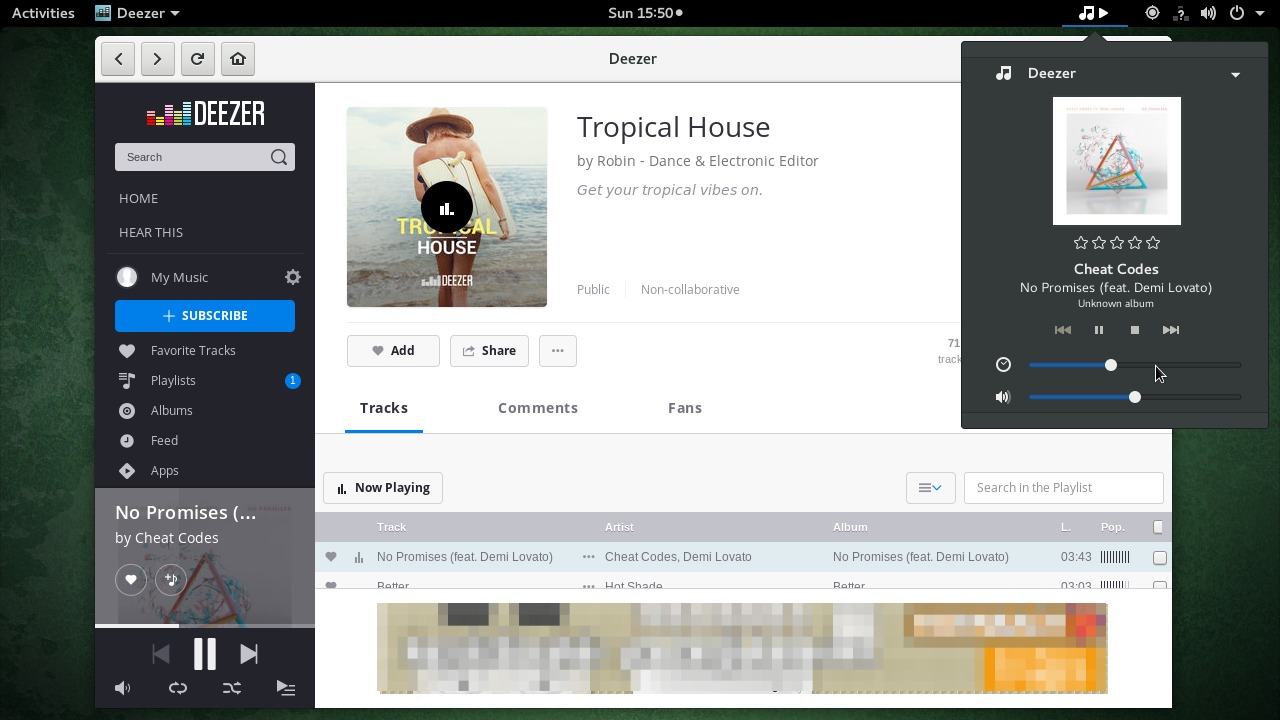
How to Install Nuvola Player 4.5 in Ubuntu 16.04 & higher

Nuvola Player, cloud music integration for Linux desktop, has reached the 4.5 release a few days ago. Here’s how to install it in Ubuntu 16.04 and higher using the flatpak packages.
Nuvola Player 4 was forked from the release 3 with many new features & enhancements. The latest Nuvola 4.5 was released on June 24th, 2017. See more details.

1. Install Flatpak and Desktop Portal service
For Ubuntu 17.04 and higher, adding the PPA is not required (skip step 1) since Flatpak is available in Ubuntu universe repository.
  1. Open terminal via Ctrl+Alt+T or by searching “Terminal” form app launcher. When it opens, run command to add flatpak PPA:
    sudo add-apt-repository ppa:alexlarsson/flatpak
  2. Then update and install flatpak via commands:
    sudo apt-get update
    
    sudo apt-get install flatpak xdg-desktop-portal-gtk
  3. Restart your computer is required.
2. Remove old Nuvola installation if any via commands:
sudo apt-get remove nuvolaplayer*
rm -rf ~/.cache/nuvolaplayer3
rm -rf ~/.local/share/nuvolaplayer3
rm -rf ~/.config/nuvolaplayer3
rm -f ~/.local/share/applications/nuvolaplayer3*
3. Install Nuvola Apps run time via command:
flatpak install --from https://nuvola.tiliado.eu/eu.tiliado.Nuvola.flatpakref
Answer y when you’re asked and hit Enter.
4. Finally install each web player via command:
flatpak install --from https://nuvola.tiliado.eu/eu.tiliado.NuvolaAppSpotify.flatpakref
replace NuvolaAppSpotify in the code via following ones for other services:
  • NuvolaApp8tracks
  • NuvolaAppAmazonCloudPlayer
  • NuvolaAppBandcamp
  • NuvolaAppDeezer
  • NuvolaAppGoogleCalendar
  • NuvolaAppGooglePlayMusic
  • NuvolaAppGroove
  • NuvolaAppJango
  • NuvolaAppKexp
  • NuvolaAppLogitechMediaServer
  • NuvolaAppMixcloud
  • NuvolaAppOwncloudMusic
  • NuvolaAppPlex
  • NuvolaAppSiriusxm
  • NuvolaAppSoundcloud
  • NuvolaAppTunein
  • NuvolaAppYandexMusic
  • NuvolaAppYoutube
After installed an app, log out and back in so you’re able to launch Nuvola app from Unity Dash, Gnome launcher or other app launcher.
Uninstall:
To uninstall the flatpak packages, simply run commands (use flatpak list to get a list of installed flatpak apps):
flatpak uninstall eu.tiliado.Nuvola
To remove flatpak, run command:
sudo apt remove --autoremove flatpak
And the PPA can be removed via Software & Updates utility under Other Software tab.

Tor vs VPN

Cada día que pasa los internautas hacen un uso más intensivo de tecnologías como por ejemplo VPN y Tor. Además también están más con...